Live view
Select your recorder or camera and view a single channel or a layout with multiple camera feeds.
Bitvision connects supported cameras and recorders to your phone. View live footage, find saved recordings and manage your devices.
Use the official app stores. Support and features vary by model and app version.


With Bitvision, you can select camera channels and view live footage. On compatible systems, you can also find saved recordings by camera and date. The additional features available depend on your device and firmware.
Select your recorder or camera and view a single channel or a layout with multiple camera feeds.
Find available recordings on your device by camera, date and time.
The app supports saving snapshots and local clips. The available controls depend on the device.
Give devices recognisable names and view your connection details.
These steps describe the general process. Menu names and screen layouts may differ in your app version.
Use a recorder or camera that supports Bitvision. Connect it to the network and check the device menu to see whether P2P is available and online.
Download Bitvision from Google Play or the App Store. Open the app and sign in, or register an account if you want to use the account features.
Open device management and choose to add a device by serial number or QR code. Scan the device code. Do not confuse the device code with the QR code that only links to the app download.
Give the device a recognisable name and enter the requested device account details. These are the details for your recorder or camera, and are not necessarily the same as your app account details.
Select the added device and a camera channel in live view. Test it using your mobile connection too, so you know whether remote viewing works.
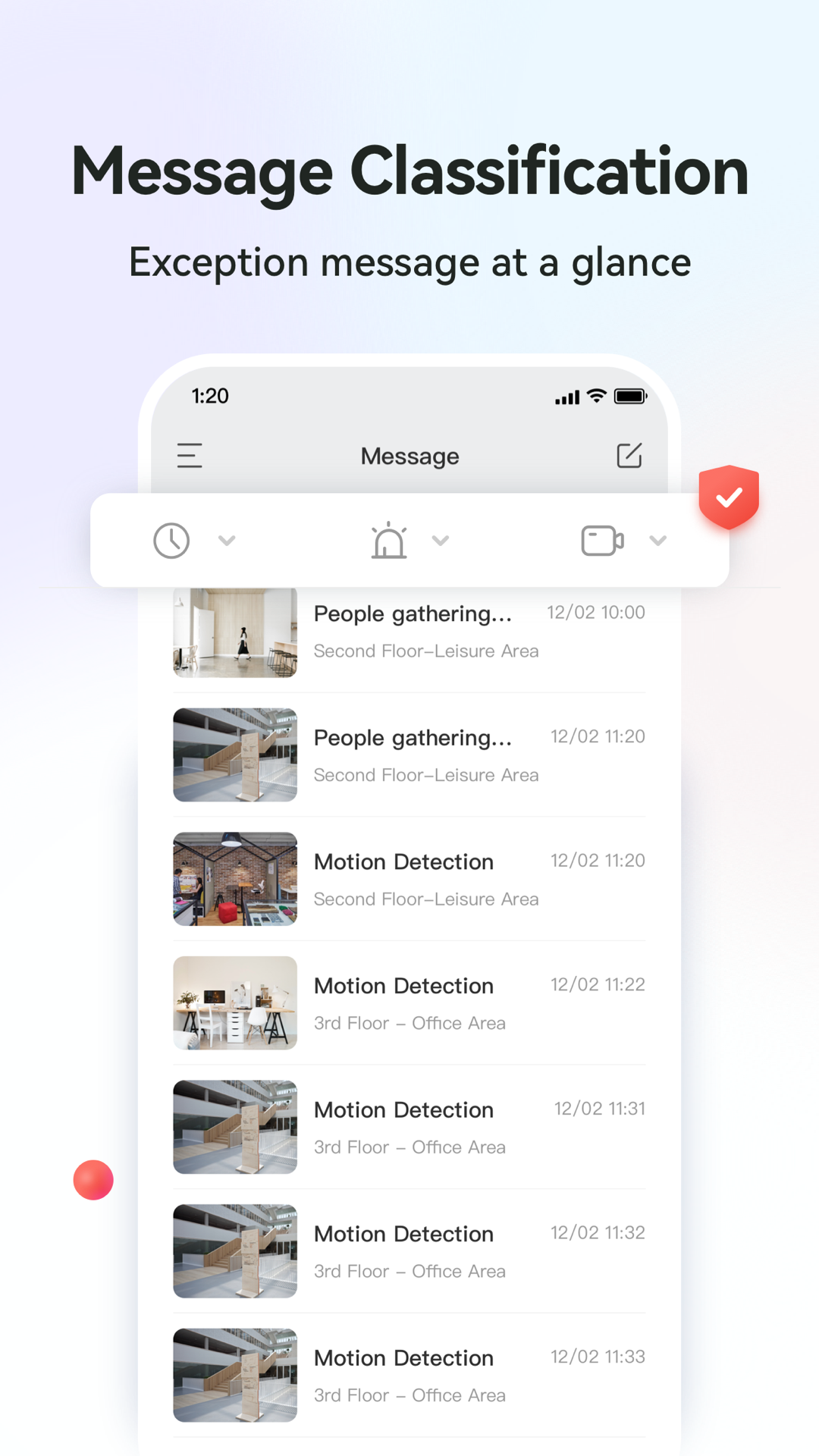
Official promotional images from the Google Play listing. They show an example of the controls; your own screens may differ.
Open playback, select the device and camera channel, and choose a date with available recordings. Use the timeline to go to a particular moment. If there are no recordings on your recorder or supported storage, there is nothing to play back.
Check the notification settings in Bitvision and the permissions on your phone. The device must support event detection and detect events. Notifications prompt you to check the footage; always check what is actually happening.
The official English manual covers the app in more detail, including registration, playback and device management. The document is version 22.3.32.3; if the screens differ, refer to the current app.
Sources: Google Play, App Store and Herospeed manual. App images belong to the publisher.
From a single camera to a complete system. Prepare your questions and ask ASAT for advice.